Contents
The New Era of AI Refinement
Ever feel like your AI-generated images are almost perfect, but not quite? It’s a common frustration. While the current AI trend is all about creating content from scratch, the real power of AI is in its ability to refine and perfect.
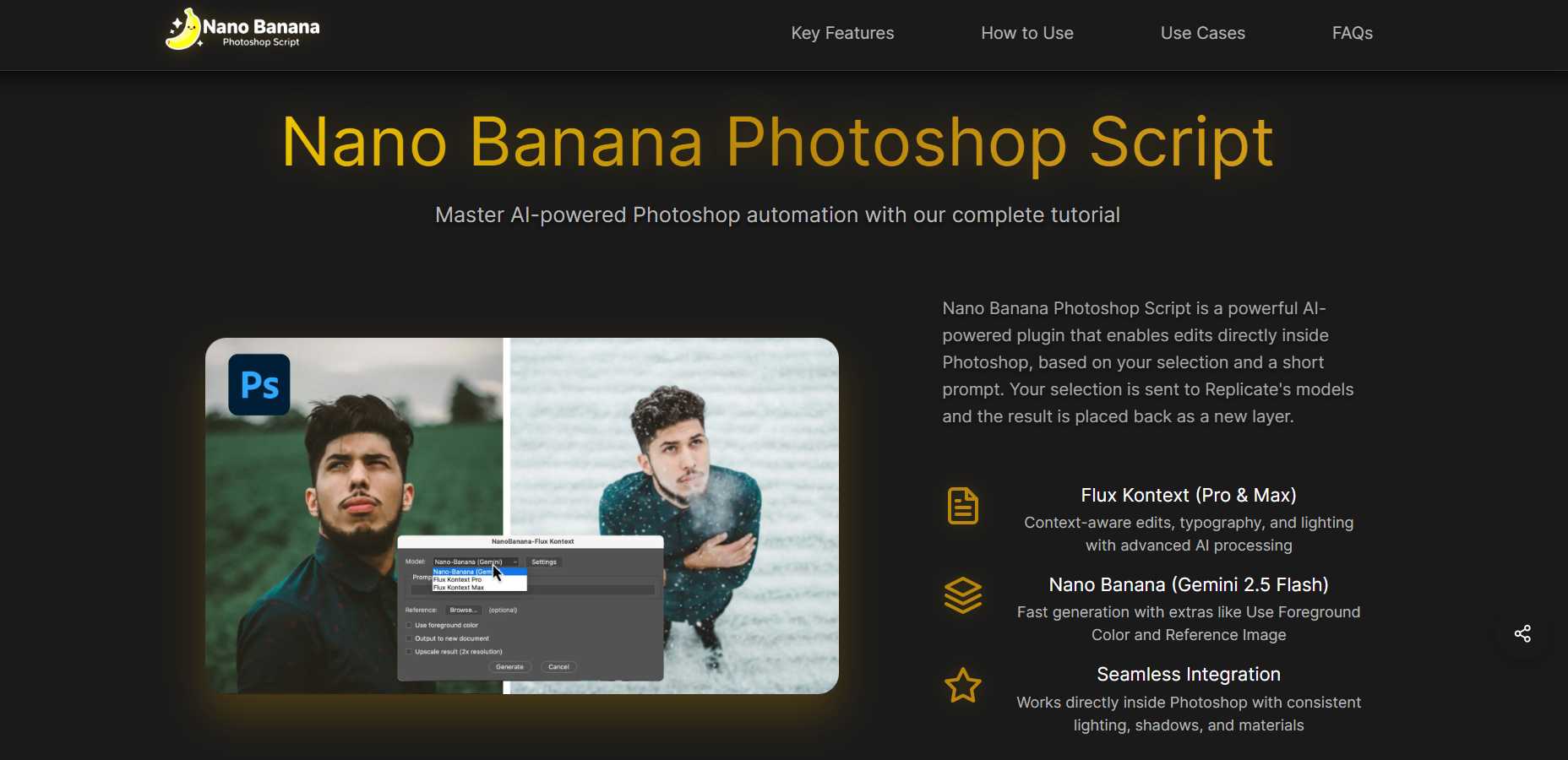
This is where the Nano Banana Photoshop script comes in. It’s not just another tool; it’s a powerful AI plugin designed to fix those subtle imperfections. The script works directly inside Photoshop, taking your selection and a short text prompt to return a refined result as a new layer. This article will show you exactly what this remarkable Photoshop AI script is and why it’s a game-changer for your workflow.
A Tale of Two Engines: Powering Your Creative Vision
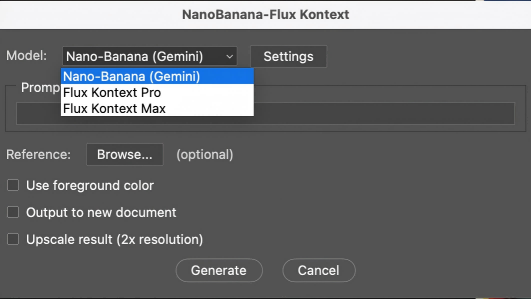
The script’s core strength lies in its unique dual model support, which caters to different creative needs. Having two distinct AI models at your disposal means you can choose the perfect one for any task, whether you need lightning speed or deep contextual awareness.
- Flux Kontext (Pro & Max): This model is a pro at context-aware edits, typography, and lighting. It’s ideal for complex scenes that require high-level coordination and consistency, like seamlessly blending a new object into a busy background.
- Nano Banana (Gemini 2.5 Flash): Known for its incredibly fast generation speed, this model also offers extra features like “Use Foreground Color” and “Reference Image.” It’s your go-to for rapid iteration and creative experimentation.
The script brings a host of benefits to your creative process:
- Instant Gratification: Say goodbye to long waits. With these advanced AI models, you’ll get professional-quality edits in seconds, not hours.
- Seamless Workflow Integration: This tool works directly within Photoshop, meaning you don’t have to switch between applications. Your AI-generated content appears as a new, non-destructive layer, maintaining perfect consistency with lighting, shadows, and materials.
Your Step-by-Step Guide to Getting Started
You can find the script guide below and visit here for more details.
Step 1: Get Your Replicate Account Ready
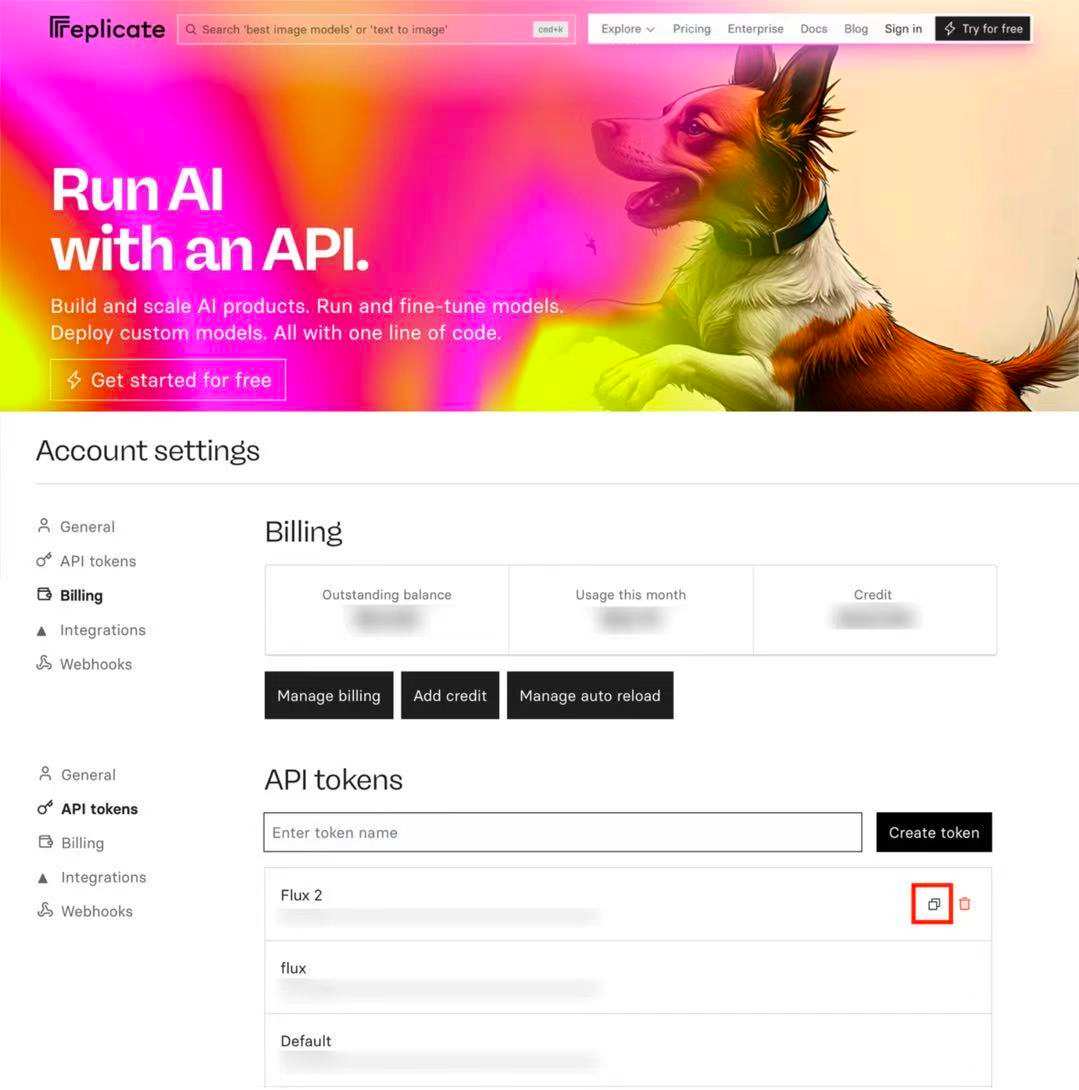
To use the script, you first need a Replicate account. Head over to replicate.com and sign in with your GitHub account. Since these models are a paid service, you’ll need to add at least $10 in credit. For peace of mind, be sure to turn off the “Manage auto reload” feature to prevent unwanted charges.
After that, create a new API token in your Account settings. You’ll need to copy this token and paste it into Photoshop to link your account.
Step 2: Simple Installation
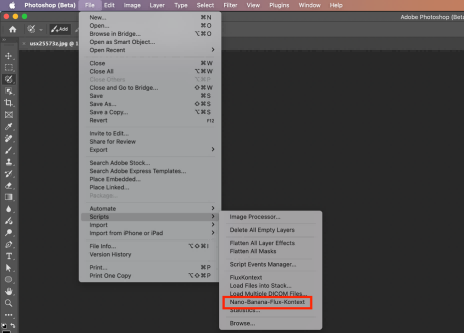
Once your Replicate account is set up, download the .jsx file. Then, copy the file into your Photoshop Scripts folder. After placing the file, simply restart Photoshop. You’ll now find the script under the File → Scripts menu, labeled “Nano-Banana-Flux-Kontext.”
Step 3: Initial Setup
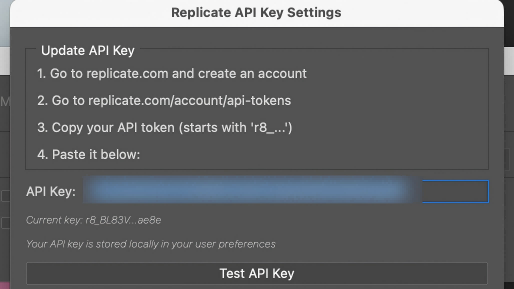
Open any document in Photoshop and run the script. The first time you do this, the Settings window will pop up. Paste your Replicate API token here. A pop-up might appear on Windows saying the key isn’t valid, but it usually works fine after you click Update or OK. Once it’s done, you can choose a default model for future use.
Step 4: Execute Your First AI Edit
Making your first AI edit is straightforward. Create a selection in your document to define the area for the AI to work on. Then, run the script again. A window will appear, asking you to type a short, specific description of the changes you want.
After a moment, the AI-powered result will appear as a new layer on top of your original image, ready for you to integrate into your work.
Insider Tips for Better Results
- Create a Shortcut: Save time by assigning a keyboard shortcut to the script. Go to Edit → Keyboard Shortcuts, find the script, and set your preferred key combination.
- Prompt Smarter: Keep your prompts short and to the point. Mention details like material, color, and lighting for best results. Remember, Flux Kontext prompts need to be more specific than those for Nano Banana.
- Give Context: When making a selection, try to make it slightly larger than the object you’re editing. This gives the AI more context, leading to a more integrated and realistic result.
- Sketch It Out: Get creative! You can even draw a simple sketch in your selection and let Nano Banana turn it into a realistic image.
Taking Control of the Creative Process
The Nano Banana Photoshop script, with its dual model support, is an essential tool for any digital creator today. It transforms the frustration of image editing into a seamless and enjoyable creative process, making complex tasks easy and accessible.
As AI models continue to evolve, tools like the Nano Banana Photoshop script will keep empowering us with incredible creative power and productivity. It’s no longer just about generating an image; it’s about perfecting it and taking control of the final output.